
C7: Migrate and go live
- Day 2
- Member challenge
- 120 min
Background
Section titled “Background”This is the go-live. You move the database to SQL Managed Instance with no data loss, then put the modernized app live on App Service against it.
Business context. Marcus, the registrar, runs the office that can’t stop enrollment for long. C7 moves the database and puts the app live, with a planned stop he can warn his staff about.
Business outcome. Safe, repeatable change. The move is a planned cutover with a written rollback, and the stop for the registrar’s office is as short as the team can make it. Illustrative target: under an hour.
Objective. Be able to migrate a database online with the MI link, validate the replica, cut over safely, and bring the app up on the new platform.
Time and scope. Day 2, 08:30 link setup and 10:30 go-live window, 120 min, Member. Pacing: requirements 1 to 3 about 25, requirement 4 about 25, requirements 5 and 6 about 30, requirement 7 about 5 and requirement 8 about 10. The rest is slack.
Challenge
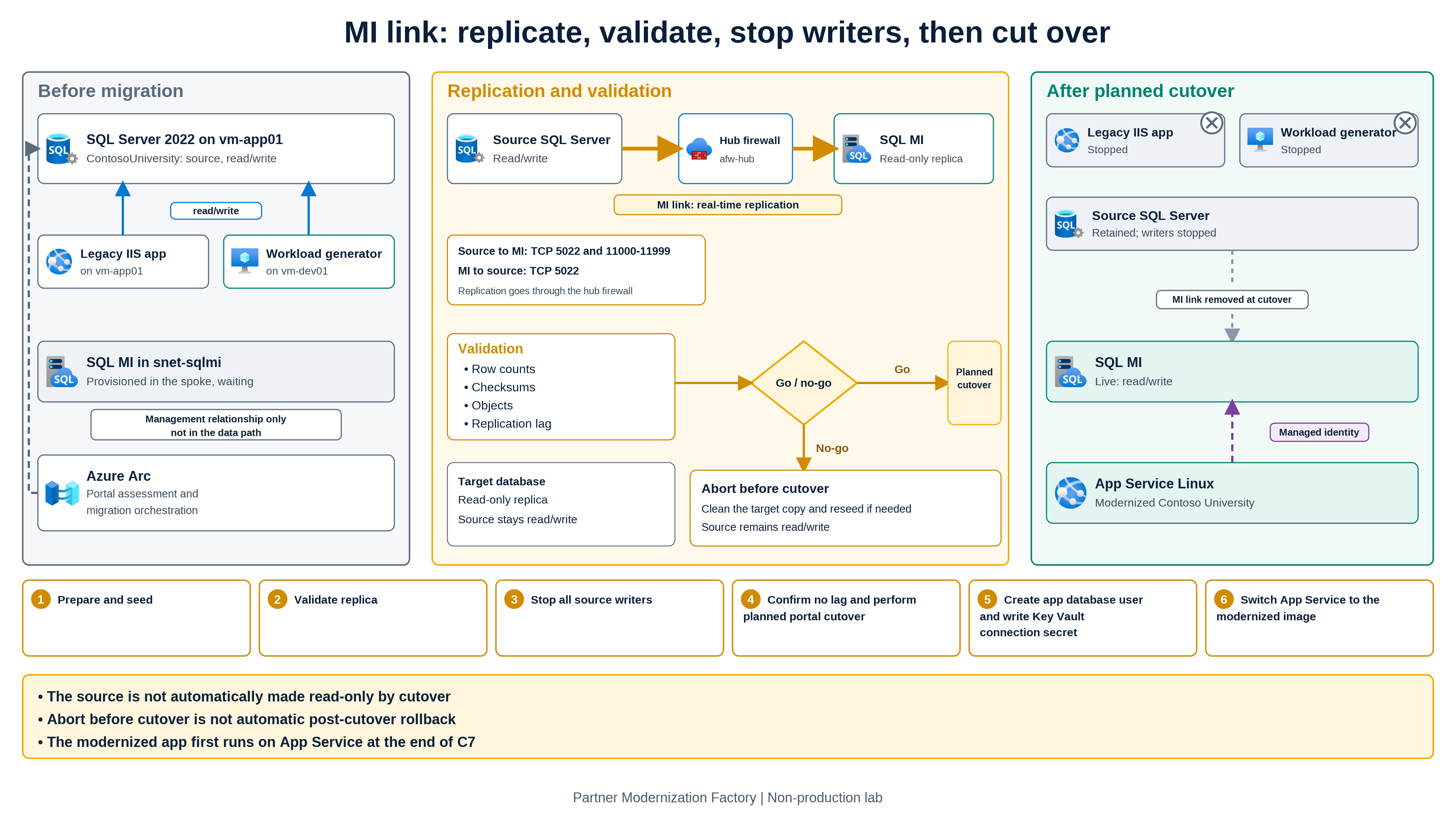
Section titled “Challenge”The MI link is a database mirror from vm-app01 to your managed instance. It keeps a read-only copy in sync until you cut over, and then the managed instance takes over as the live database.
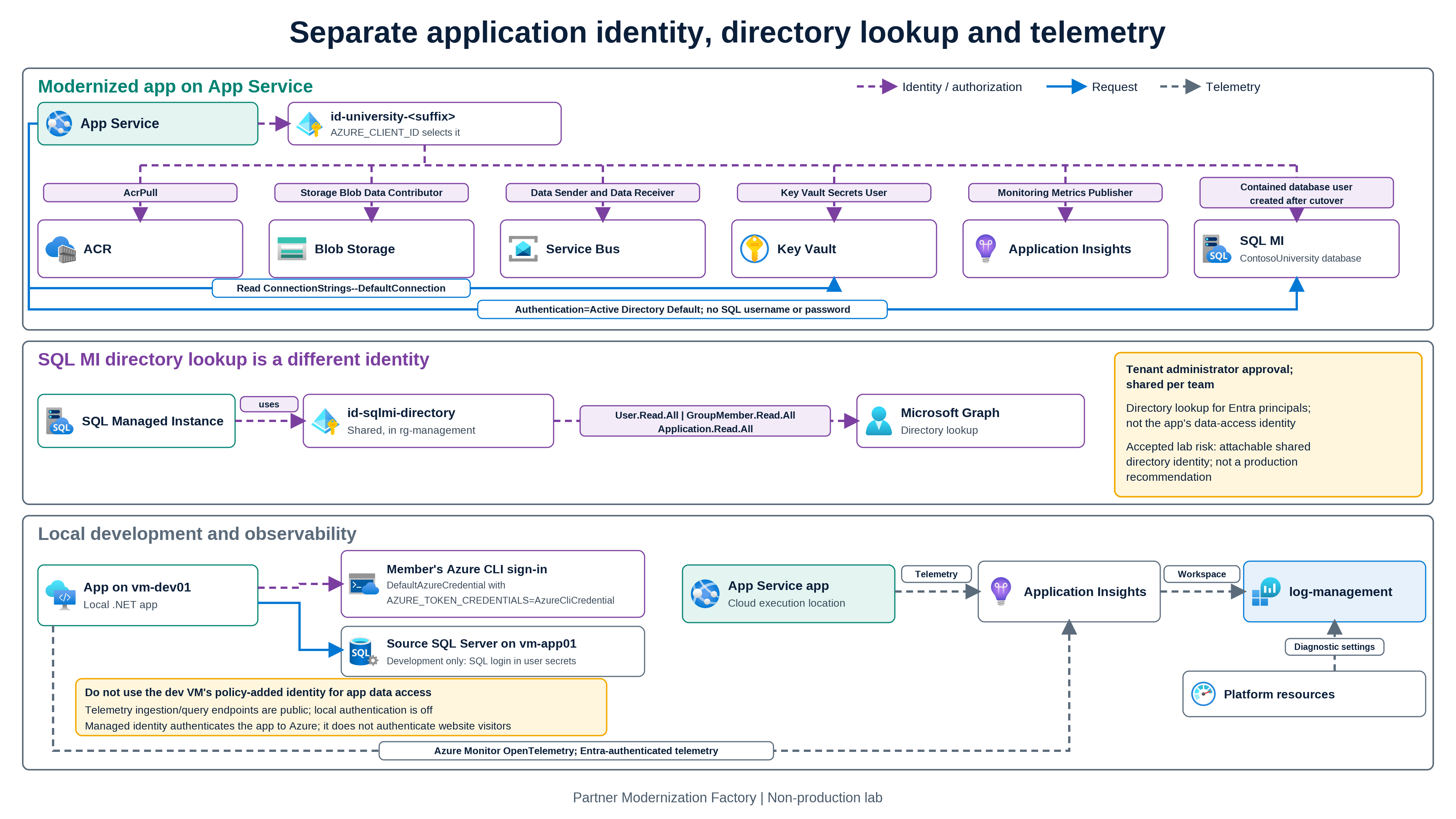
How the app’s identities and secrets fit together
Requirements 5 and 6 depend on which identity does what. The web app’s own identity reads the Key Vault secret and signs in to the database. A separate shared identity lets SQL Managed Instance look up Microsoft Entra users.
Starting point.
- C5’s deployed SQL Managed Instance, with its directory read access granted at Step 2.2 (T-7). At Day 2 08:30, the team lead loads
$sfrom.local/settings.jsoninfactory/and runs./scripts/Grant-SqlMiDirectoryRead.ps1 -SharedSubscriptionId $s.sharedSubscriptionId -WhatIfwith the coach. Expected: all three permissions already granted. This read-only check needs Reader on the shared subscription; missing grants go back to the Privileged Role Administrator before members proceed. - C6’s modernized, packaged app may still be in progress when you start the link. Finish C6 before replica validation and cutover, using your latest verified image tag (initially
c6), not yet pointed at App Service. vm-app01running, with its Azure Arc entry Connected. C3 had you start it; runaz vm startfor it if it’s stopped. The portal shows the instance only while the machine is connected.
Start the link at 08:30 on Day 2, as in the event agenda, before you finish C6: requirements 1 and 2 take about 20 minutes, and creating the link takes up to 10 more. Continue unfinished C6 while the link is being created and seeds; finish C6 and wait for Ready for cutover before requirement 3’s replica validation or cutover. Those 10 minutes of waiting overlap C6 and don’t count toward C7’s 120. After the lag check in requirement 4.4, make the go/no-go decision with your coach. A no-go means restart the source site and pool, keep the link running, and postpone the cutover to a later window. If you must cancel the link and reseed, plan another 20 to 30 minutes to validate again and agree a second window.
You decide. Whether the validated replica is good enough to cut over (go or no-go, with your coach), and what you write in your runbook.
Fixed by the kit
Section titled “Fixed by the kit”The datacenter deployment turned on availability groups on vm-app01’s SQL Server, set the startup trace flags -T1800 and -T9567, made NT AUTHORITY\SYSTEM a sysadmin and onboarded the instance to Azure Arc (the readiness check). Vending opened the network path between vm-app01 and your managed instance’s subnet. Requirement 1 does the rest of what the link needs on the source: a Windows Firewall rule for port 5022, a database master key, the Azure root certificates and a full backup.
Where to work
Section titled “Where to work”Portal documentation checked on: 2026-10-30. These steps retain the kit’s tested migration flow; the portal UI was not rerun for this review. The event owner must validate the current portal labels before each event and record that run’s date, rather than treating this source-check date as a live test.
Requirements
Section titled “Requirements”-
Prepare the source. vm-app01 · Admin PowerShell Run the kit’s
Prepare-MiLinkSource.ps1onvm-app01. It must run inside a Bastion session, because VM run commands stop working once the VM is Arc-enabled. Safe to run again: it adds what’s missing, resets the firewall rule’s source address and takes a new full backup.-
Connect to
vm-app01through Bastion and open an Administrator Windows PowerShell. -
Download the script and run it with the command printed on
vm-dev01above, which has your<n>in it (when<n>is256or higher, use the exact-MiSubnetPrefixprinted above). If your event runs from a copy of the kit, your coach gives you that copy’s URL instead of the one below.vm-app01 — Administrator Windows PowerShell [Net.ServicePointManager]::SecurityProtocol = [Net.SecurityProtocolType]::Tls12New-Item -ItemType Directory -Force C:\LabTools | Out-NullInvoke-WebRequest -Uri 'https://raw.githubusercontent.com/jonathan-vella/apex-factory-hackathon/main/infra/datacenter/scripts/Prepare-MiLinkSource.ps1' -OutFile C:\LabTools\Prepare-MiLinkSource.ps1 -UseBasicParsingC:\LabTools\Prepare-MiLinkSource.ps1 -MiSubnetPrefix 10.20.<n>.128/26
The script prints one line per step with the time, and logs the same lines to
C:\LabTools\logs\Prepare-MiLinkSource.log. You should see, in order: the firewall rule for TCP 5022; anInstance:line with availability groups1, trace flags on2 of 2and SYSTEM sysadmin1; the database master key created (or “exists”); the two root certificatesDigiCertPKIandMicrosoftPKIimported (or “exist”);ContosoUniversityin the full recovery model; the full backup with checksum; and last,The source is ready for MI link.Expected result: The last line is
The source is ready for MI link.If it fails: If you see an
ERROR:line, see If link creation fails in the hints. -
-
Start the link. Azure portal Start the MI link migration against your SQL Managed Instance.
- Open Azure Arc > SQL Server instances and select the instance whose host machine is
vm-app01. In the menu, under Migration, select Database migration. The pane has four tiles: Assess source instance, Select target, Migrate data and Monitor and cutover. - Select target: on the Create or select target pane, choose Yes, I have already created a target. Pick your workload subscription, the resource group
rg-university-<suffix>and the managed instancesqlmi-university-<suffix>, then select the target. - Migrate data > Migrate using real-time replication (online). (Migrate using log shipping (online) is a different method that the kit doesn’t use.)
- Tick
ContosoUniversityand select Next: Settings. Name the link and leave the generated availability group name. Test connection can pass even when creation would fail, so don’t treat it as proof. - Select Next: Review + create. Read each warning. A warning that leaves Start data migration available doesn’t block you; one that blocks it, or that mentions the network, certificates or backups, means stop and see If link creation fails.
- Select Start data migration and note the time. Follow it in Monitor migrations (the Monitor and cutover pane): creating the link takes up to 10 minutes, then it seeds the database.
Continue C6 while creation and seeding run. Done when the status of
ContosoUniversityis Ready for cutover. The Lag column shows two dashes, which Microsoft Learn describes as no lag. - Open Azure Arc > SQL Server instances and select the instance whose host machine is
-
Validate the read-only replica. vm-dev01 · SSMS Finish C6 and confirm the link is Ready for cutover before starting this validation. The replica must hold the same data as the source before you trust it. In SSMS on
vm-dev01, open two connections:- Source: server name
10.10.<n>.4(or theSource SQL Server addressprinted above when<n>is256or higher); Authentication SQL Server Authentication; Logincontosoappwith the password printed onvm-dev01above. Select Options > Connection Properties and tick Trust server certificate, because the source’s certificate is self-signed. - Replica: server name the host name that
$miprinted (paste it); Authentication Microsoft Entra MFA; User name the account that deployed the archetype in C5.
On each connection, open a new query on the
ContosoUniversitydatabase and run these, with no writers on the source (stop anything you started in C6):vm-dev01 — SSMS (run on both Source and Replica connections) -- 1. Row counts of every tableSELECT s.name + N'.' + t.name AS TableName, SUM(p.rows) AS [RowCount]FROM sys.tables AS tJOIN sys.schemas AS s ON s.schema_id = t.schema_idJOIN sys.partitions AS p ON p.object_id = t.object_id AND p.index_id IN (0, 1)GROUP BY s.name, t.nameORDER BY TableName;-- 2. A content checksum of two tablesSELECT COUNT(*) AS Total, CHECKSUM_AGG(BINARY_CHECKSUM(*)) AS Fingerprint FROM dbo.Department;SELECT COUNT(*) AS Total, CHECKSUM_AGG(BINARY_CHECKSUM(*)) AS Fingerprint FROM dbo.Course;-- 3. Compatibility level, read or write, and the performance kit's objectsSELECT name, compatibility_level, CAST(DATABASEPROPERTYEX(name, 'Updateability') AS nvarchar(20)) AS Updateability FROM sys.databases WHERE name = DB_NAME();SELECT name FROM sys.objects WHERE name IN (N'usp_SearchStudents', N'usp_GetStudentEnrollments', N'vw_EnrollmentStatistics') ORDER BY name;The two connections must give the same answer for every query, except
Updateability:READ_WRITEon the source andREAD_ONLYon the replica. The compatibility level is110on both, and the last query lists three objects on both. If a count differs, wait a minute (the replica catches up) and run it again. If it still differs, or something else looks wrong, abort and reseed: don’t cut over on a replica you haven’t checked.Done when the row counts, both fingerprints, the compatibility level and the three objects match on both connections.
- Source: server name
-
Stop every writer to the source, then cut over. vm-dev01 vm-app01 Azure portal The source stays writable even after cutover, so any write after your final lag reading is lost. Tell your coach you’re about to stop the writers and wait for their go-ahead. Then do these steps in order.
Don’t script the cutover. Use the Monitor and cutover pane, not a command:
az sql mi link failoverrun from the managed instance’s side fails, because the managed instance is the secondary at that point, and failing over by hand on SQL Server skips the portal’s checks. The guide has the detail; don’t run those commands.-
vm-dev01 Stop anything on
vm-dev01that writes to the source. Close the SSMS windows connected to10.10.<n>.4. Close the modernized app if you left it running from C6 (stopdotnet run, or the debug session, and close its terminal), and don’t runReset-PerfKit.ps1.Start-Workload.ps1only reads, but stop it too. Don’t stop the VM itself. -
vm-app01 · Admin PowerShell Stop the legacy app on
vm-app01. Connect through Bastion, open an Administrator Windows PowerShell, and stop the site and its application pool (IIS runs the site, and the pool is what keeps database connections open). Leave SQL Server running: the link needs it.vm-app01 — Administrator Windows PowerShell Import-Module WebAdministrationStop-Website -Name ContosoUniversityStop-WebAppPool -Name ContosoUniversity(Get-Website -Name ContosoUniversity).State(Get-WebAppPoolState -Name ContosoUniversity).ValueBoth lines must print
Stopped. Fromvm-dev01,http://10.10.<n>.4/must no longer load. -
vm-app01 · Admin PowerShell Check nothing else is connected to the database. Still on
vm-app01, in the same PowerShell:vm-app01 — Administrator Windows PowerShell $query = "SELECT session_id, login_name, host_name, program_name, status FROM sys.dm_exec_sessions WHERE is_user_process = 1 AND database_id = DB_ID('ContosoUniversity') AND session_id <> @@SPID"$conn = New-Object System.Data.SqlClient.SqlConnection 'Server=localhost;Database=master;Integrated Security=True;TrustServerCertificate=True'$conn.Open()$cmd = $conn.CreateCommand()$cmd.CommandText = $query$table = New-Object System.Data.DataTable$table.Load($cmd.ExecuteReader())$conn.Close()$table | Format-Table"Sessions: $($table.Rows.Count)"An empty table and
Sessions: 0is what you want. A row means a client is still connected: usehost_nameandprogram_nameto find it (an SSMS window onvm-dev01is the usual one), close it, and run the check again. -
Azure portal Watch the lag reach zero. Open the Monitor and cutover pane (Database migration > Monitor migrations). With no writers, the status of
ContosoUniversitystays Ready for cutover and the Lag column shows two dashes, which means no lag, within a minute or two. If lag doesn’t clear, or a writer keeps appearing, postpone the cutover: restart the site and pool (Start-WebAppPool -Name ContosoUniversity; Start-Website -Name ContosoUniversity), keep the link running, and agree a later window with your coach. -
Azure portal Cut over at no lag.
Select
ContosoUniversity, then Cutover. Microsoft Learn uses this label, but some portal builds show Complete cutover for the same action. Tick the box that confirms you’ve stopped all incoming traffic to the source, and leave the forced failover box clear: a planned failover waits for the lag to reach zero, and forcing it with lag above zero can lose writes. The portal removes the link when the cutover completes: it offers no option to keep it. -
Azure portal vm-dev01 · SSMS Wait for it to finish. It takes about 2 minutes. On Monitor and cutover, the migration for
ContosoUniversityshows as completed and the link is gone. Then, in SSMS onvm-dev01on the replica connection from requirement 3, runSELECT DATABASEPROPERTYEX('ContosoUniversity', 'Updateability');. It must returnREAD_WRITE(it saidREAD_ONLYin requirement 3).
Done when the migration shows completed and the managed instance’s database returns
READ_WRITE. The managed instance is now the live database. Leave the legacy site onvm-app01stopped: restarting it would write to a source that’s no longer authoritative. -
-
Write the secret and create the database user. vm-dev01 · PowerShell 7 vm-dev01 · SSMS After cutover, follow the first two go-live actions in Step 5 of the modernization playbook (the single source for the commands and checks), as the archetype’s deployer:
- Action 1 (vm-dev01 · PowerShell 7): write the
ConnectionStrings--DefaultConnectionsecret tokv-university-$suffix. - Action 2 (vm-dev01 · SSMS): on the
ContosoUniversitydatabase on$mi, runCREATE USER [id-university-<suffix>] FROM EXTERNAL PROVIDERand grant the three database roles.
- Action 1 (vm-dev01 · PowerShell 7): write the
-
Point the web app at your latest verified C6 image and restart it. vm-dev01 · PowerShell 7 Browser Run Action 3 in Step 5 of the modernization playbook in PowerShell 7 on
vm-dev01. Set$tagto the tag you actually published and checked, including any later gap-fix build; do not deploy an olderc6image over it. The web app pulls from your private registry with its managed identity.Done when
https://app-university-<suffix>.azurewebsites.net/returns HTTP 200 and loads the home page in your browser (full functional and acceptance checks run in C8). -
Follow up on C3’s trace-flag decision: remove
-T1800and-T9567from the source now that the link is gone. vm-app01 · Admin PowerShellIn your Administrator Windows PowerShell session on
vm-app01, runPrepare-MiLinkSource.ps1 -RemoveTraceFlags:vm-app01 — Administrator Windows PowerShell C:\LabTools\Prepare-MiLinkSource.ps1 -RemoveTraceFlagsThe script verifies no distributed availability group (MI link) is active, removes only
-T1800and-T9567from the SQL Server startup parameters in the registry while preserving all other startup flags, restartsMSSQLSERVER, and verifies withDBCC TRACESTATUS(-1)that neither trace flag is on. Done when it printsRestarted MSSQLSERVER and verified with DBCC TRACESTATUS(-1) that trace flags 1800 and 9567 are off. -
Update the concise cutover runbook. vm-dev01 · C:\src\<your-repo> Open the pre-created
factory/evidence/c07/cutover-rollback-runbook.mdinC:\src\<your-repo>onvm-dev01, tick the pre-cutover checklist, record your brief cutover summary and customer recovery notes, and commit and push onmain:vm-dev01 — C:\src<your-repo> (pwsh) cd C:\src\<your-repo>git pull --rebasegit add factory/evidence/c07/cutover-rollback-runbook.mdgit commit -m "docs: C7 cutover and rollback runbook"git pushRollback scope: the event exercises a pre-cutover abort/reseed, not rollback after cutover. Document the pre-cutover abort path and name the customer procedure needed afterward: backup restore or planned
failback, with data reconciliation and an agreed recovery window. Never restart the stale source as a shortcut after the managed instance has accepted writes.
Success criteria
Section titled “Success criteria”To complete this challenge, check your work on vm-dev01. Keep the coach’s go/no-go decision in requirement 4:
-
Prepare-MiLinkSource.ps1 -MiSubnetPrefix ...completed withThe source is ready for MI link. - The MI link seeded (Ready for cutover), replica comparison queries matched, source writers stopped with
Sessions: 0, and planned cutover completed withUpdateabilityreadingREAD_WRITEon SQL MI. - Contained database user
[id-university-<suffix>]created on SQL MI,ConnectionStrings--DefaultConnectionwritten to Key Vault, andhttps://app-university-<suffix>.azurewebsites.net/returning HTTP 200. -
C:\LabTools\Prepare-MiLinkSource.ps1 -RemoveTraceFlagscompleted onvm-app01, confirming trace flags1800and9567are off. -
factory/evidence/c07/cutover-rollback-runbook.mdcommitted onmaininC:\src\<your-repo>. - Outcome check: Marcus could read your runbook and know when the office stops, for how long and how to recover.
For deployment or connectivity errors, check Troubleshooting before asking your coach.
If link creation fails
Work through these in order:
- Requirement 1 must have finished with
The source is ready for MI link.ReadC:\LabTools\logs\Prepare-MiLinkSource.logonvm-app01. AnERROR:line that says the instance is not ready means a datacenter setting is missing: tell your coach. - The prefix you passed must be your own
10.20.<n>.128/26(or the exact-MiSubnetPrefixprinted by the setup command onvm-dev01when<n>is256or higher). A wrong prefix opens port 5022 to the wrong subnet and the link can’t connect. Run the script again with the right one: it fixes the firewall rule. vm-app01must be running with its Arc entry Connected, and the SQL Server service must be running.- Test connection can pass while creation still fails, so read the error the portal shows on Monitor migrations and send it to your coach. Don’t change firewall, network or certificate settings by hand.
- To retry, select Cancel migration, delete the leftover copy on the managed instance (the next hint), and start again from requirement 2. Requirement 1 doesn’t need repeating.
The abort leaves something behind
In the Azure portal, Monitor and cutover > select the database > Cancel migration removes the link without a failover. An aborted link leaves a writable copy of the database on the MI, and the source is untouched (restart the legacy site if you stopped it). Delete the copy before starting a new seed, or the reseed fails. This deletes the copy on the managed instance only; the database on vm-app01 isn’t affected. On vm-dev01:
az sql midb delete --resource-group $rg --managed-instance "sqlmi-university-$suffix" --name ContosoUniversity --yesThen start the link again from requirement 2.
CREATE USER fails
Before cutover, the replica is read-only, so the user creation step only works after cutover completes (requirement 4, step 6). If it still fails afterward with a permissions error on the server’s Entra identity, ask your coach: the MI’s primary identity needs Microsoft Graph read access, set up at Step 2.2 and checked at Day 2 08:30 above. C2 requirement 3 checks connectivity, not the Graph grant.
The app won’t start against App Service
Check the Key Vault secret exists and has the right name (ConnectionStrings--DefaultConnection, with the double dash), and that the database user was created with the identity’s exact name.
If you need to start over
Before the cutover, cancel and reseed: Cancel migration in the portal, delete the copy on the managed instance (see the hint “The abort leaves something behind”), then start again from requirement 2. After the cutover there’s no link to remove: the managed instance is the live database, so ask your coach before you change anything. If the web app won’t start after go-live, check the Key Vault secret and the database user first, then ask your coach.